we provide Best Quality UiPath UiPath-ADAv1 free question which are the best for clearing UiPath-ADAv1 test, and to get certified by UiPath UiPath Automation Developer Associate v1 Exam. The UiPath-ADAv1 Questions & Answers covers all the knowledge points of the real UiPath-ADAv1 exam. Crack your UiPath UiPath-ADAv1 Exam with latest dumps, guaranteed!
Online UiPath-ADAv1 free questions and answers of New Version:
NEW QUESTION 1
Consider testing a workflow that computes the sum of two numbers having the data driven test data from the Excel file below: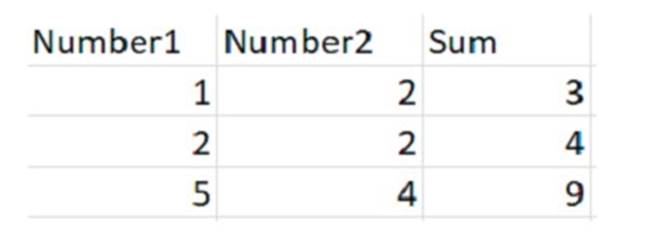
Expanding the functionality of the workflow to compute the sum of three numbers, the data needs to be updated as well to accommodate the new scenario: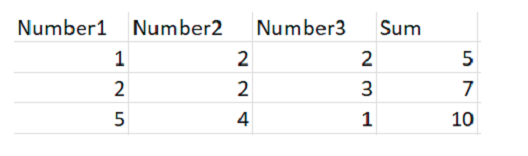
What are steps to do that?
- A. Click Right on the Test Case and select Update Test Data.
- B. Click Right on the Test Case and select Add Test Data.
- C. Click Right on the Test Case and select Remove Test Data.
- D. Click Right on the Test Case and select Refresh Test Data.
Answer: A
Explanation:
To update the data to accommodate the new scenario, you need to modify the Excel file that contains the test data and then refresh the test case to reflect the changes. The steps are as follows:
✑ Open the Excel file that has the test data for the workflow. It should have four
columns: Number1, Number2, Sum, and Result.
✑ Add a new column after Number2 and name it Number3. This column will store the third number for the sum operation.
✑ Update the existing rows in the Excel file to include a value for Number3 and adjust the value of Sum accordingly. For example, if Number1 is 1, Number2 is 2, and Number3 is 3, then Sum should be 6.
✑ Save and close the Excel file.
✑ In UiPath Studio, right click on the test case that uses the Excel file as the test data source and select Update Test Data. This will open a window where you can edit the test data settings.
✑ In the Update Test Data window, make sure that the Excel file path is correct and that the sheet name is selected. You can also change the name and description of the test data if you want.
✑ Click OK to save the changes and close the window.
✑ Right click on the test case again and select Refresh Test Data. This will reload the test data from the Excel file and update the test case accordingly.
You have successfully updated the test data to compute the sum of three numbers instead of two. You can now run or debug your test case with data variations1.
NEW QUESTION 2
A developer indicated a Ul element for a Get Text activity. The automatically-generated selector is shown below.
<html app=, chrome.exe, title='temperature now1 />
<webctrl tag='table' class=, ui_side_menu' innertext-19°C 66°F' /> Based on best practices, which selector attribute is unreliable?
- A. tag
- B. class
- C. title
- D. innertext
Answer: D
Explanation:
Based on best practices, the selector attribute that is unreliable is innertext. The innertext attribute is the text content of a UI element, such as a table, a button, or a label. The innertext attribute is unreliable because it can change dynamically depending on the data or the state of the UI element. For example, the innertext attribute of a table can change when the table is updated with new values, or the innertext attribute of a button can change
when the button is clicked or disabled. Using the innertext attribute in a selector can cause the selector to fail or to identify the wrong UI element if the text content is different from the expected value1. Therefore, the innertext attribute should be avoided or replaced with a more reliable attribute, such as tag, class, or title. The tag attribute is the name of the HTML element, such as table, button, or input. The tag attribute is reliable because it does not change unless the UI element is replaced with a different element. The class attribute is the name of the CSS class that defines the style or the behavior of the UI element, such as ui_side_menu, btn-primary, or form-control. The class attribute is reliable because it does not change unless the UI element is styled or modified differently. The title attribute is the text that appears when the mouse pointer is hovered over the UI element, such as temperature now, submit, or username. The title attribute is reliable because it does not change unless the UI element is renamed or removed2.
References: Selectors with Wildcards and UiPath Selectors from UiPath documentation and forum.
NEW QUESTION 3
Considering a process developed using REFramework, if the status of a transaction was set to "Failed" with the Error Type specified as "Business", the process will transition to which state?
- A. Get Transaction Data
- B. Initialization
- C. End Process
- D. Process Transaction
Answer: A
Explanation:
The REFramework template is a robust and scalable framework for building RPA projects1. It uses a state machine to handle the different stages of the automation process2. One of the states is the Process Transaction state, where the main actions are performed on each transaction item3. A transaction item can be a queue item from Orchestrator, a data row from an Excel file, or any other type of data that needs to be processed4. If the status of a transaction item is set to “Failed” with the Error Type specified as “Business”, it means that the item did not meet a business or application requirement within the project and was therefore sent to a Set Transaction Status activity, which changed its status to Failed. In this case, the process will transition to the Get Transaction Data state, where the next transaction item is retrieved and assigned to be processed. The process will not transition to the Initialization, End Process, or Process Transaction states, as these are used for different purposes in the REFramework. References:
✑ The UiPath ReFramework documentation from UiPath
✑ State Machines documentation from UiPath
✑ Process.xaml documentation from UiPath
✑ TransactionItem Variable documentation from UiPath
✑ [Queue Item Statuses] documentation from UiPath
✑ [GetTransactionData.xaml] documentation from UiPath
NEW QUESTION 4
A developer configured the properties for a Click activity as shown below: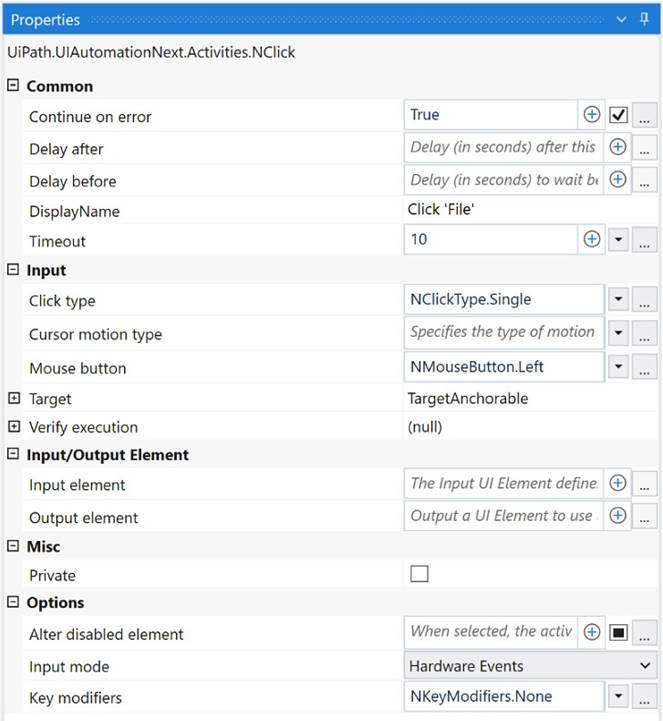
What happens if the activity cannot find its target at runtime?
- A. An exception is thrown after 10 seconds.
- B. The next activity is executed after 10 seconds.
- C. The next activity is executed after 10 milliseconds.
- D. An exception is thrown after 10 milliseconds.
Answer: A
Explanation:
If the activity cannot find its target at runtime, an exception is thrown after 10 seconds. This is because the “ContinueOnError” property is set to “False” and the “DelayAfter” property is set to “10” seconds. The “ContinueOnError” property determines whether the automation should continue even when the activity fails, and the “DelayAfter” property specifies the amount of time (in milliseconds) to wait before moving to the next activity. (UiPath Automation Developer study guide)
References:
✑ Click
✑ Common Properties
NEW QUESTION 5
In a UiPath project that uses State Machines, under what circumstances should the Final State activity be used in the project?
- A. When initiating the first state of a state machine.
- B. When marking the successful completion or termination of a state machine's execution.
- C. When a particular state contains complex conditional logic.
- D. When an intermediary state has multiple possible transitions.
Answer: B
Explanation:
The Final State activity is used to indicate the end of a state machine’s execution, either successfully or with an error1. The Final State activity has only one section, Entry, where you can add activities to perform before exiting the state machine2. You can have more than one Final State in a state machine, but you can only create one Initial State3. The Final State activity should be used when you want to mark the completion or termination of a state machine’s execution, not when initiating the first state, handling complex logic, or having multiple transitions.
https://docs.uipath.com/activities/other/latest/workflow/final-state
NEW QUESTION 6
Which of the following describes the correct hierarchy of the elements in the Object Repository tree structure?
- A. Screen, Application, Version, UI Element.
- B. Application, Version, Screen, UI Element.
- C. Application, Screen, UI Element, Version.
- D. Version, Application, Screen, UI Element.
Answer: B
Explanation:
The Object Repository tree structure follows a hierarchical order that starts with the Application node, which represents the application or system that contains the UI elements to be automated. Under the Application node, there can be one or more Version nodes, which specify the version of the application or system. Each Version node can have one or more Screen nodes, which represent the different screens or windows of the application or system. Finally, each Screen node can have one or more UI Element nodes, which are the individual UI elements that can be used for automation. (UiPath Automation Developer study guide)
References:
✑ Object Repository Tree Structure
✑ Object Repository
NEW QUESTION 7
When encountering an ApplicationException, what occurs if the developer chooses InvalidOperationException as the exception handler within the Catches section of the Try Catch activity?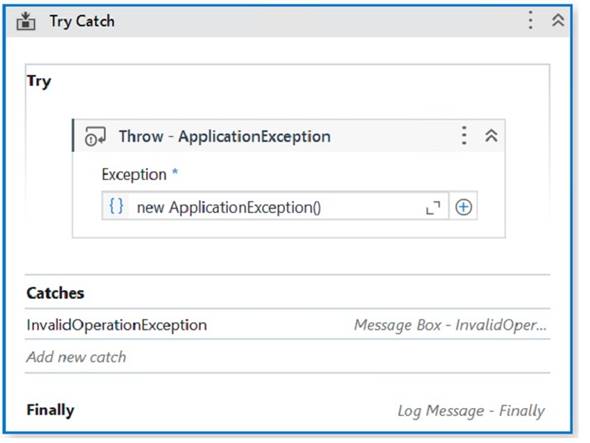
- A. The Finally block is executed and the Catches section catches the exception.
- B. A runtime error occurs and the Finally block is not executed.
- C. No exceptions are happening and the workflow continues to execute.
- D. No exception is thrown and the Finally block executes.
Answer: B
Explanation:
The Try Catch activity is used to handle errors and exceptions that may occur during the execution of a workflow1. It has three sections: Try, Catches, and Finally1.
✑ The Try section contains the activities that may throw an exception or an error. If
an exception or an error occurs, the execution of the Try section is stopped and the control is passed to the Catches section1.
✑ The Catches section contains one or more exception handlers that specify what
type of exception or error to catch and what actions to perform when it is caught. The exception handlers are executed in order, from top to bottom, until a matching exception or error is found. If no matching exception or error is found, the execution of the workflow is stopped and a runtime error is thrown1.
✑ The Finally section contains the activities that are always executed at the end of
the Try Catch activity, regardless of whether an exception or error occurred or not. The Finally section is used to perform cleanup actions, such as closing applications, releasing resources, or logging messages1.
In your case, you have configured the properties for the Try Catch activity as follows:
✑ The Try section contains a Throw activity with an ApplicationException.
✑ The Catches section contains an InvalidOperationException with a Message Box activity and a Log Message activity.
✑ The Finally section is empty.
This means that the Try Catch activity will throw an ApplicationException in the Try section and look for a matching exception handler in the Catches section. However, since you have chosen InvalidOperationException as the exception handler, which does not match the ApplicationException, the execution of the workflow will be stopped and a runtime error will occur. The Finally section will not be executed.
Therefore, option B is correct.
References: Try Catch - UiPath Documentation Portal.
NEW QUESTION 8
A developer is using a Global Exception Handler as an error handling mechanism for a project. By default, how many times does a Global Exception Handler retry an activity that continually throws an error?
- A. 2
- B. 3
- C. 4
- D. 5
Answer: B
Explanation:
The Global Exception Handler is an error handling mechanism for a project. By default, it retries an activity that continually throws an error 3 times. The Global Exception Handler is a workflow that is executed when an exception occurs in the project. It allows the developer to define custom actions for handling different types of exceptions, such as logging, retrying, aborting, or continuing the execution1. When the Global Exception Handler encounters an exception, it logs the name of the activity which faulted and starts retrying the activity three times. If it encounters the same exception each time and the number of retries reaches 3, the execution is aborted at the level of the activity which threw the exception2. The number of retries can be modified by changing the value of the RetryCount variable in the Global Exception Handler workflow3. References: Global Exception Handler and Global Handler for Exceptions from UiPath documentation and Marketplace.
NEW QUESTION 9
What role do Triggers play in the UiPath Integration Service?
- A. Manage connections between UiPath Studio and third-party applications.
- B. Provide a mechanism for starting processes on a scheduled basis from Orchestrator.
- C. Assist in the creation of automation projects by providing event-based activities.
- D. Provide a mechanism for subscribing to specific events from third-party applications, automatically starting processes in Orchestrator.
Answer: D
Explanation:
Triggers are a feature of UiPath Integration Service that allow you to react to key events in third-party systems, such as data updates, insertions, deletions, or custom events. By configuring triggers, you can start your UiPath processes automatically from Orchestrator when these events occur, enabling near real-time automation workflows across different applications. (UiPath Integration Service documentation1)
References:
✑ 1: Integration Service - Triggers - UiPath Documentation Portal
NEW QUESTION 10
Which of the following credentials stores have built in support in Orchestrator?
- A. Azure Key Vault, CyberArk CCP, HashiCorp Vault, Thycotic Secret Server, BeyondTrust, CyberArk.
- B. CyberArk CCP, Cisco, Google Credentials, CyberArk, Azure Key Vault.
- C. CyberArk CCP, Azure Key Vault, Google Credentials, Amazon Security Services.
- D. Cisco, Amazon Security Services, Google Credentials, Microsoft SCS, IBM Vault.
Answer: A
Explanation:
Credential stores are secure locations where you can store and retrieve sensitive data such as robot credentials and credential assets1. Orchestrator supports the use of multiple credential stores and has built-in integrations with the following ones2:
✑ Azure Key Vault: A cloud-based service that provides secure storage and
management of secrets, keys, and certificates3.
✑ CyberArk CCP: A component of the CyberArk Privileged Access Security Solution that provides centralized management and distribution of credentials to applications and robots4.
✑ HashiCorp Vault: A tool that enables secure access to secrets and encryption keys across dynamic environments5.
✑ Thycotic Secret Server: A web-based solution that protects privileged accounts and credentials from cyberattacks and insider threats.
✑ BeyondTrust: A platform that offers privileged access management, remote access, and vulnerability management solutions.
✑ CyberArk: A leader in privileged access management that secures credentials, sessions, and endpoints across hybrid and cloud environments.
Therefore, option A is the correct answer, as it lists all the credential stores that have built- in support in Orchestrator. Option B is incorrect because it includes Cisco and Google Credentials, which are not credential stores supported by Orchestrator. Option C is incorrect because it includes Amazon Security Services, which is not a credential store supported by Orchestrator. Option D is incorrect because it includes Cisco, Amazon Security Services, Microsoft SCS, and IBM Vault, which are not credential stores supported by Orchestrator.
NEW QUESTION 11
To retrieve all Outlook emails with the word "UiPath" in the subject, which filtering property and filter schema should a developer use?
- A. Property: FilterByMessageldsSchema: "@SQL=""urn:schemas:httpmail:subject"" like 'UiPath%""
- B. Property: FilterSchema: "@SQL=""urn:schemas:httpmail:subject"" like '%UiPath%""
- C. Property: FilterSchema: "@SQL=""urn:schemas:httpmail:subject"" like 'UiPath%""
- D. Property: FilterByMessageldsSchema: "@SQL=""urn:schemas:httpmail:subject"" like '%UiPath%""
Answer: B
Explanation:
To retrieve all Outlook emails with the word “UiPath” in the subject, a developer should use the Filter property and the filter schema “@SQL=”“urn:schemas:httpmail:subject”" like ‘%UiPath%’“. The Filter property allows developers to specify a DASL query that filters the emails based on various criteria, such as subject, sender, date, etc. The filter schema “@SQL=”“urn:schemas:httpmail:subject”” like ‘%UiPath%’" uses the SQL dialect of DASL to search for emails that have the word “UiPath” anywhere in the subject. The “%” symbol is a wildcard that matches any character or string. (UiPath Automation Developer study guide)
References:
✑ Get Outlook Mail Messages
✑ Chapter 11: Searching Outlook Data | Microsoft Learn
NEW QUESTION 12
DRAG DROP
What are the steps to publish a project from UiPath Studio?
Instructions: Drag the Description found on the "Left" and drop on the correct Step Sequence found on the "Right".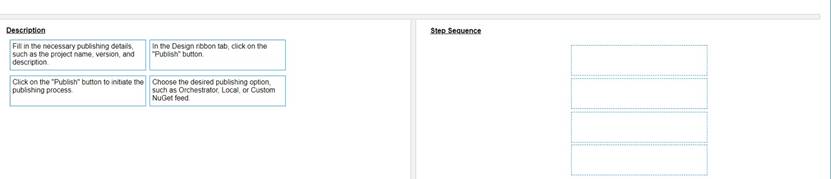
Solution:
The steps to publish a project from UiPath Studio are:
✑ In the Design ribbon tab, click on the “Publish” button. The Publish Project window opens. (UiPath Studio documentation1)
✑ Fill in the necessary publishing details, such as the project name, version, and description. You can also add release notes and select the environment where the project will run. (UiPath Studio documentation1)
✑ Choose the desired publishing option, such as Orchestrator, Local, or Custom NuGet feed. Depending on your choice, you may need to provide additional information, such as the Orchestrator URL, the local folder path, or the custom feed URL. (UiPath Studio documentation1)
✑ Click on the “Publish” button to initiate the publishing process. A confirmation message will appear when the project is successfully published. (UiPath Studio documentation1)
Short Explanation: Publishing a project from UiPath Studio means creating a package that contains all the files and dependencies required to run the automation process. The package can be deployed to different locations, such as Orchestrator, a local machine, or a custom NuGet feed. Publishing a project from UiPath Studio involves four main steps: clicking on the Publish button, filling in the publishing details, choosing the publishing
option, and confirming the publishing process. (UiPath Automation Developer study guide2) References:
✑ 1: Publishing Projects from Studio - UiPath Studio.
✑ 2: UiPath Certified Automation Developer - Learning Plan.
Does this meet the goal?
- A. Yes
- B. Not Mastered
Answer: A
NEW QUESTION 13
In the Robotic Enterprise (RE) Framework, at which point should a developer log a clear message with the Logging Level set to "Information," adhering to the best practices for automating a production-level process?
- A. Whenever an argument or value is used.
- B. Whenever data is fetched from external sources.
- C. Whenever an exception is caught in a Catch block.
- D. Whenever the robot encounters an error on a Queue Item.
Answer: C
Explanation:
Logging Level “Information” is used to log general information about the process execution, such as the start and end of a transaction1. When an exception is caught in a Catch block, the developer should log a clear message with this level to indicate the type and source of the error, and the action taken to handle it2.
https://docs.uipath.com/studio/standalone/2023.4/user-guide/logging-levels
NEW QUESTION 14
Review the following exhibit.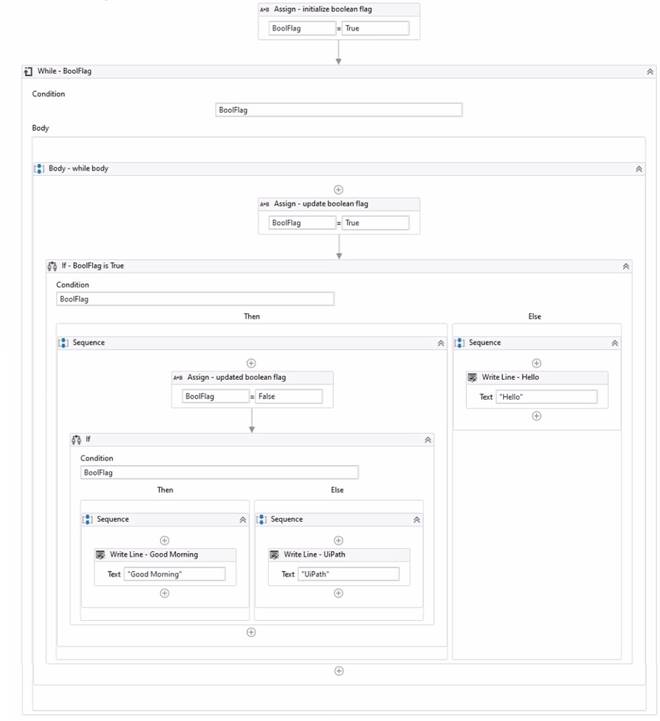
Based on the exhibit, which output is produced in the Output panel?
- A. Hello
- B. Good Morning UiPath
- C. Good Morning
- D. UiPath
Answer: C
Explanation:
Based on the exhibit, the output produced in the Output panel is “Good Morning”. This is because the “If” activity checks if the “BoolFlag” variable is True. If it is True, the “Then” branch is executed, which contains a “Write Line” activity with the text “Good Morning”. If the “BoolFlag” variable is False, the “Else” branch is executed, which contains a “Write Line” activity with the text “UiPath”. Since the “BoolFlag” variable is assigned to True in the previous “Assign” activity, the condition of the “If” activity is satisfied, and the “Then” branch is executed. Therefore, the “Write Line” activity writes “Good Morning” to the Output panel4. References: If and How to put a if condition in assign activity? from UiPath documentation and forum.
NEW QUESTION 15
In the Catches section of the Try Catch activity a developer selected ArgumentException in the exception handler.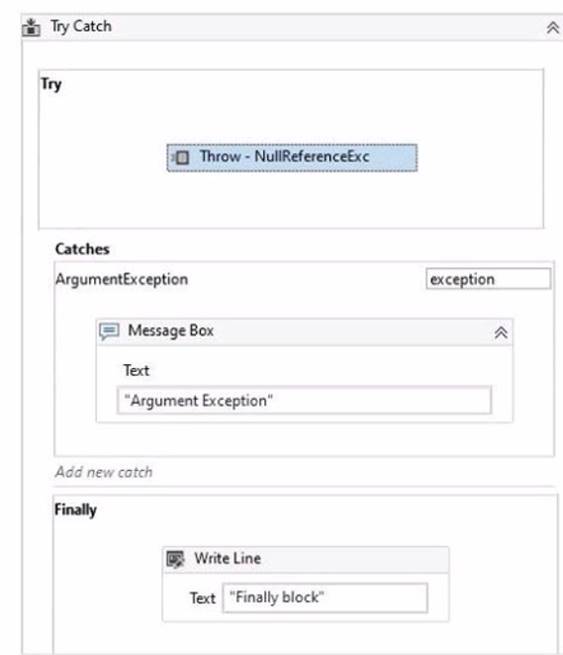
What happens when the activity encounters a NullReferenceException?
- A. The Finally block is not executed and a runtime error occurs.
- B. The Finally block executes and no exception is thrown.
- C. The Catches section catches the exception and the Finally block is executed.
- D. The Catches section catches the exception and the Finally block is skipped.
Answer: A
Explanation:
When the activity encounters a NullReferenceException, the Finally block is not executed and a runtime error occurs. This is because the Catches section of the Try Catch activity only handles the ArgumentException type, which is a specific type of exception that occurs when one of the arguments provided to a method is not valid1. A NullReferenceException is a different type of exception that occurs when there is an attempt to dereference a null object reference2. Since the Catches section does not have a handler for the NullReferenceException type, the exception is not caught and the execution is stopped with a runtime error. The Finally block, which contains the activities that are always executed regardless of the outcome of the Try Catch activity, is also skipped3. References: ArgumentException Class, NullReferenceException Class, and Try Catch from UiPath documentation.
NEW QUESTION 16
What do the percentages from the Test Explorer panel represent?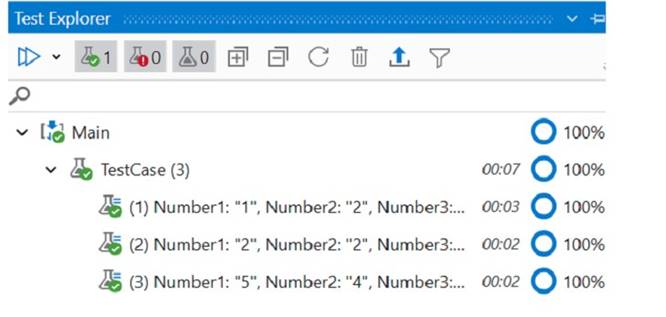
- A. Correctness of the code percent.
- B. Passing percent.
- C. Coverage percent.
- D. Percent of test data run.
Answer: C
Explanation:
The percentages from the Test Explorer panel represent the coverage of the test cases, which is the ratio of the number of activities that are executed by the test cases to the total number of activities in the project. The higher the coverage, the more thorough the testing is. The coverage percentage is calculated for each test case, test set, and the entire project. You can view the coverage details in theCoverage sub-panel of the Test Explorer1.
References:
✑ Test Explorer documentation from UiPath
NEW QUESTION 17
......
Recommend!! Get the Full UiPath-ADAv1 dumps in VCE and PDF From Dumpscollection.com, Welcome to Download: https://www.dumpscollection.net/dumps/UiPath-ADAv1/ (New 195 Q&As Version)